Vimeo platform is now available on inmotek!
This week, a new feature has been activated that allows the use of the Vimeo video platform directly from Inmotek. This means you can now upload videos not only from YouTube, but also from Vimeo, which offers a more professional result and quality.
We have decided to include the possibility of using Vimeo in inmotek because, in this way, companies that use this professional video platform will be able to add their files to inmotek with ease.
The process for using Vimeo is very similar to that for using the YouTube platform: first you need to set up the channel and finally you just need to add the video to the property listing.
Below we will describe the process graphically so that the process does not present any difficulty to those who wish to use Vimeo.
1. CONFIGURE THE PLATFORM:
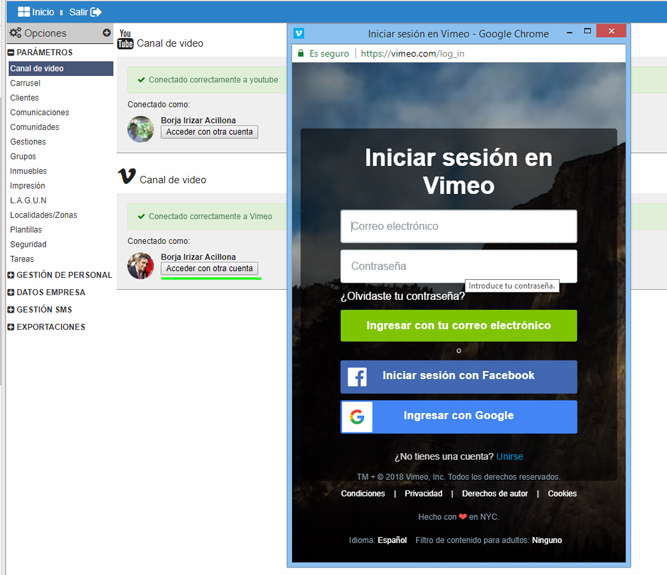
To configure your Vimeo channel, go to OPTIONS and select SETTINGS from the list on the right. Once it expands, select "Video Channel". To configure the channel, click "Sign in with a Vimeo account" (if you haven't set one up) or "Sign in with another account" (if you have an account set up and want to change it).
Once you select this option, a window will open where you'll need to enter your agency's Vimeo account details and select "Sign in with your email account." At this point, you'll need to follow the simple steps indicated by the platform, just as you would when setting up, for example, an app on your mobile phone. Once the process is complete, you'll be able to upload videos from the platform.
2. HOW TO ADD AND MANAGE VIDEOS IN MY PROPERTIES:
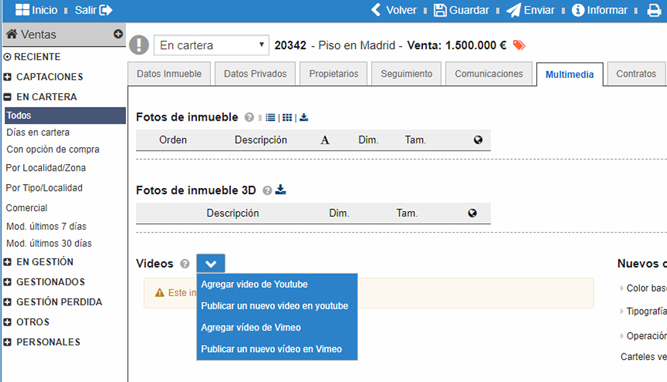
To add a video, we'll need to select the desired property and then select the MULTIMEDIA option. There, we can upload not only images but also videos. To do this, simply click on the "+" next to the "Videos" label. Clicking this symbol opens a drop-down menu with the following options:
- Add YouTube video: With this option, we will add a video that already exists on the YouTube channel by incorporating its link.
- Publish new video on YouTube: with this option we will add a video and upload it simultaneously to YouTube and Inmotek.
- Add Vimeo video: with this option we will add a video that already exists on the Vimeo channel by incorporating its link.
- Publish new video on Vimeo: with this option we will add a video and upload it simultaneously to Vimeo and inmotek.
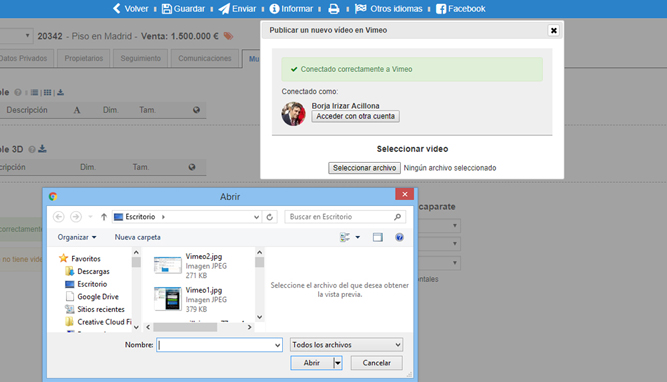
If we select the last option, uploading a new video to Vimeo , a window will open showing the account we have configured in Inmotek, which is the same account the new video will be uploaded to. To upload the video, we will have to click "Select file." It is important to remember that this option is only valid if we have the video file saved or accessible from the device we are using to upload the file.
When you select the "select file" option, a window will open allowing you to choose the file from your device. Simply select the file and click "Open."
In this way, the video we have chosen will load after a few brief moments and will display the text "Video uploaded successfully".
From this moment on, the video will be uploaded to both Inmotek and the Vimeo channel.
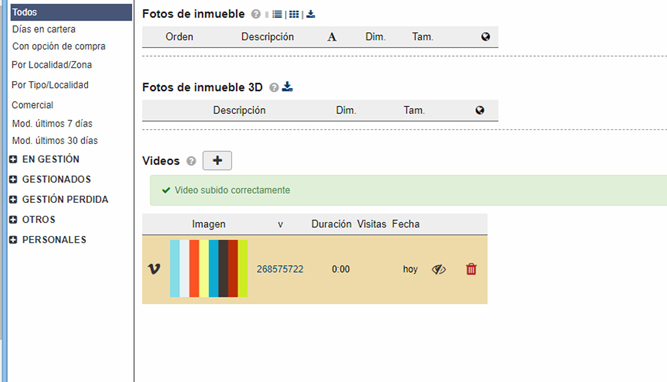
A few final important instructions come from the two icons next to the uploaded file. The first icon, an eye, allows you to unlink the video. This means it will no longer be published on Inmotek but will remain on your Vimeo channel, should you wish to use it later. The second icon, the red trash can, allows you to delete the file simultaneously from both platforms: Inmotek and Vimeo.
Remember, once you've made the desired changes to both videos and images, we recommend clicking the "Save" button in the blue bar at the top. This will save all the changes to the property's listing.